
Kling is one of the few AI platforms that treats image and video creation as a single workflow. Drop in a text prompt or a still photo and it will output cinematic clips—with optional Lip Sync and voiceover—within seconds. The 2025.5 release (Kling 2.1) pushes quality to full HD, adds physics-aware rendering, and keeps the generous free tier that helped the product go viral.
This guide recreates the original Skunc AI Lab article so you can evaluate Kling’s capabilities, onboarding steps, and pricing without hopping between tabs.
Table of Contents
- What Is Kling?
- Why Creators Are Paying Attention
- Kling 1.6 vs 2.1
- Deep Dive on Kling 2.1 Upgrades
- How to Use Each Tool
- Pricing (July 2025)
- Bottom Line
What Is Kling?
Kling is a multimodal generator from Kuaishou Technology, the company behind the Kuaishou and Kwai video platforms. The workflow is intentionally “prompt in, video out”: enter a scene description or upload a still, and Kling produces finished clips in roughly 30 seconds. Kling 1.6 (late 2024) put it on the map, and Kling 2.1 (May 2025) adds pro-level fidelity with HD output and advanced simulations.
Why Creators Are Paying Attention
- Free credits with premium quality — Free accounts receive ~300–400 credits per month, enough to prototype or produce short campaigns.
- End-to-end Japanese support — The site UI is in English, but browser translation plus Japanese prompts works flawlessly, which matters for domestic teams.
- Image-to-video in one click — “Image to Video” turns hero shots or posters into moving visuals without rebuilding the scene in 3D.
- Built-in Lip Sync — Choose from 30+ synthetic voices, type a script, and Kling handles TTS plus mouth animation (English/Chinese for now).
- Rapid versioning — Kling 1.6 capped at 720p; Kling 2.1 now offers 1080p, physics, and up to four simultaneous variants.
Kling 1.6 vs 2.1
| Feature | Kling 1.6 | Kling 2.1 |
|---|---|---|
| Max resolution | 720p | 1080p (Pro or higher) |
| Image input | Start/End frame control | Start frame only |
| Physics simulation | – | Cloth, hair, and water dynamics |
| Audio support | Requires external tools | One-step output (Master tier) |
| Elements tool | ✅ up to 4 references | Not yet supported |
| Parallel generations | 2 variants | Up to 4 variants |
| Recommended use | Lightweight tests, serial storytelling | HD ads, social posts, final delivery |
Use this comparison to decide whether you still need the 1.6 workspace (for Elements or End-frame controls) or can fully migrate to 2.1.
Deep Dive on Kling 2.1 Upgrades
Cinematic video from a single frame
Provide one “Start Frame” and Kling fabricates camera motion, lighting, and depth to give the scene cinematic energy—even when you only have a poster sketch.
Automatic physics behavior
Kling now simulates cloth, hair, water splashes, and gravity changes directly in the 3D latent space. Effects that normally require keyframing fall out of the default render.
Full HD output (Pro tier and above)
The jump to 1080p means you can publish straight to TikTok, YouTube Shorts, or DOOH signage without quality trade-offs. Pro plans also enjoy priority queues.
Integrated audio (Master tier)
For teams that want finished videos in one pass, Kling inserts SFX, BGM, TTS, and Lip Sync within a single render. It dramatically shortens the editing toolchain.
How to Use Each Tool
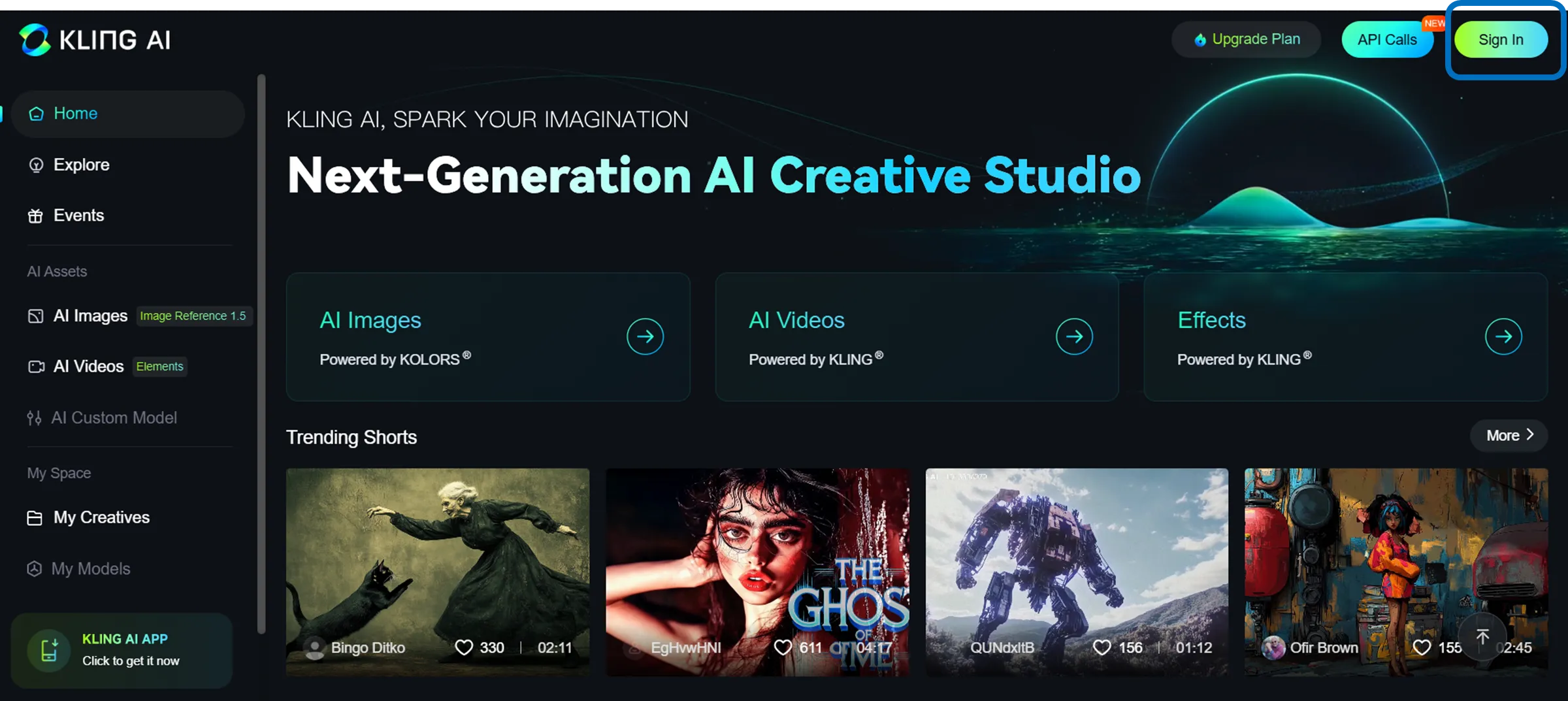
Account creation
- Visit klingai.com.
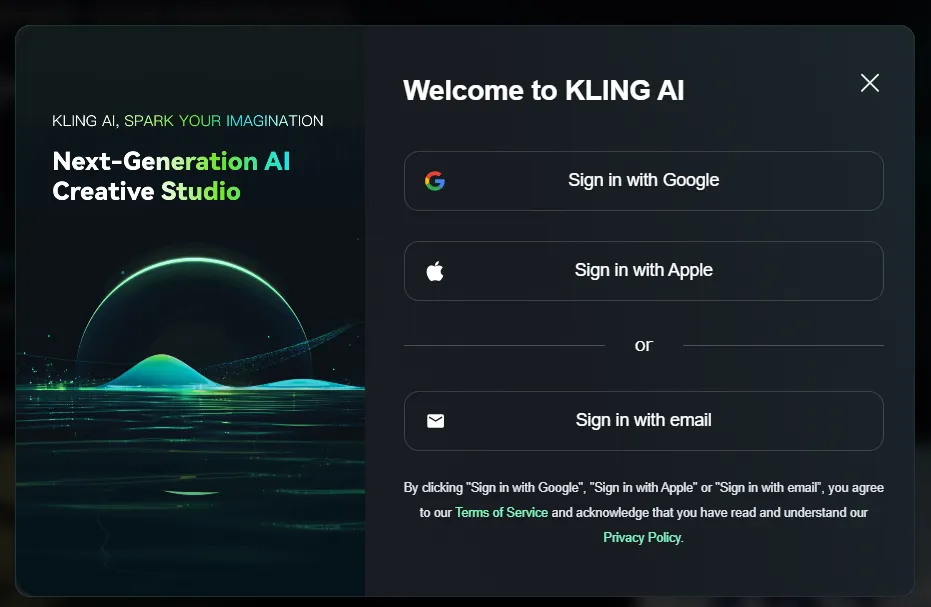
- Sign up with email and password (or social login when available).
- You’ll receive ~300–400 starter credits instantly.
AI Image (still image generation)
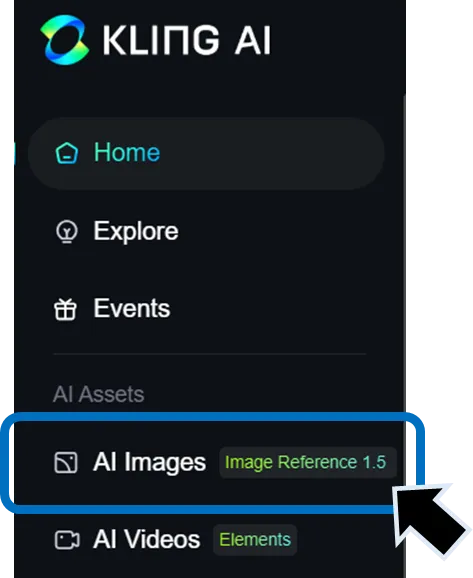
- Open the AI Images tab.
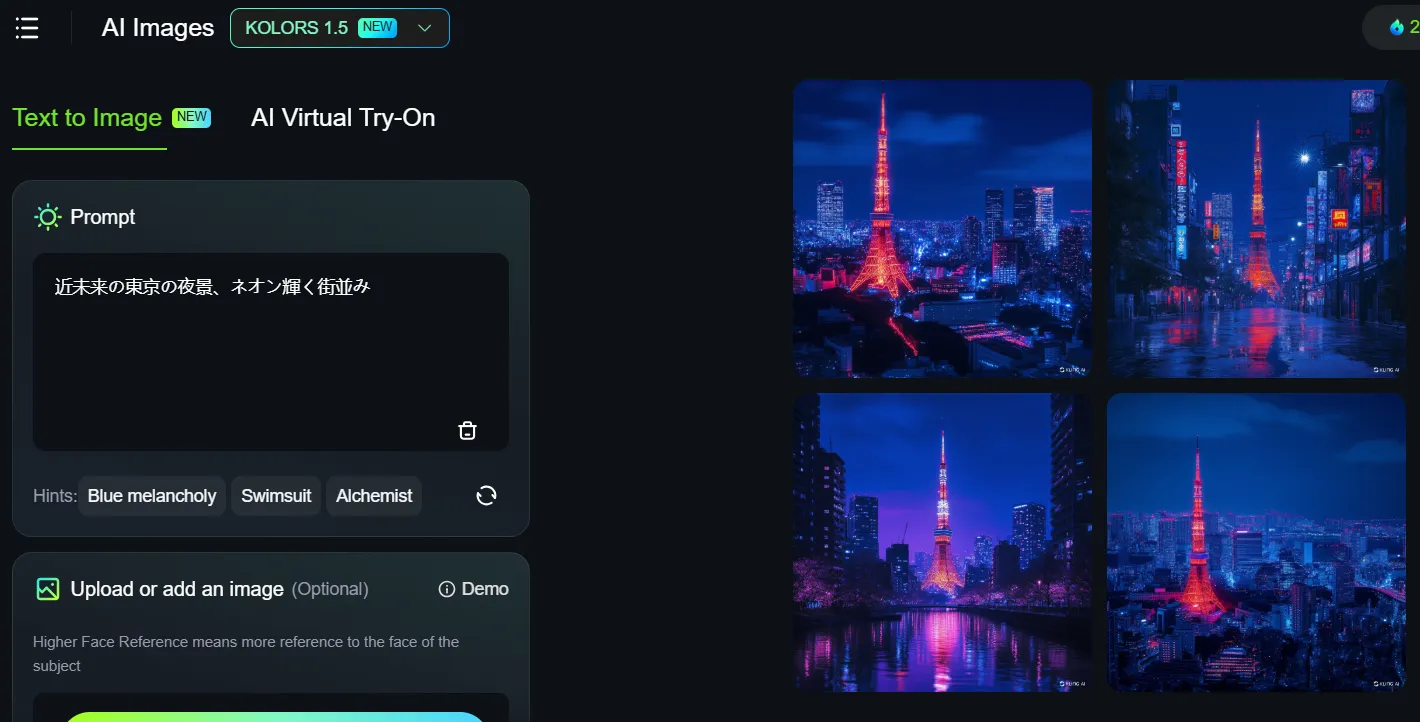
- Describe the visual in natural language and tweak style/ratio settings.
- Hit Generate to render.
- Save the still or send it straight into the video workflows.
Prompt example: “Neon-drenched Tokyo streets at midnight, cinematic wide shot.”
Text to Video
- Switch to AI Video.
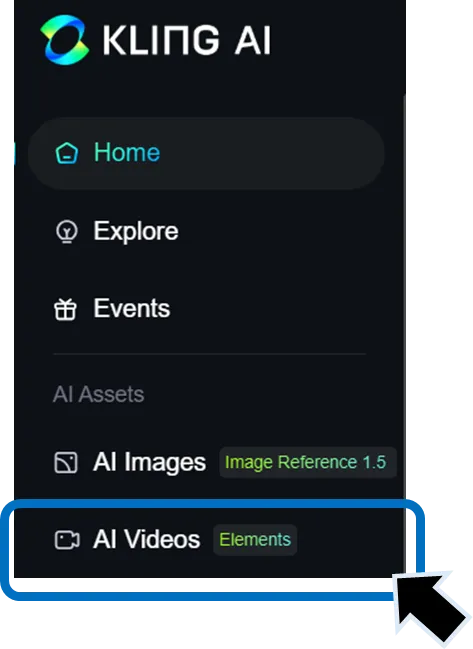
- Write the scene prompt, then set aspect ratio and clip length.
- Click Generate.
Prompt example: “Woman reading in a café while rain hits the window outside.”
Image to Video
- Upload any still (or pick one from AI Images).
- Add optional guidance text just like Text to Video.
- Press Generate to animate it.
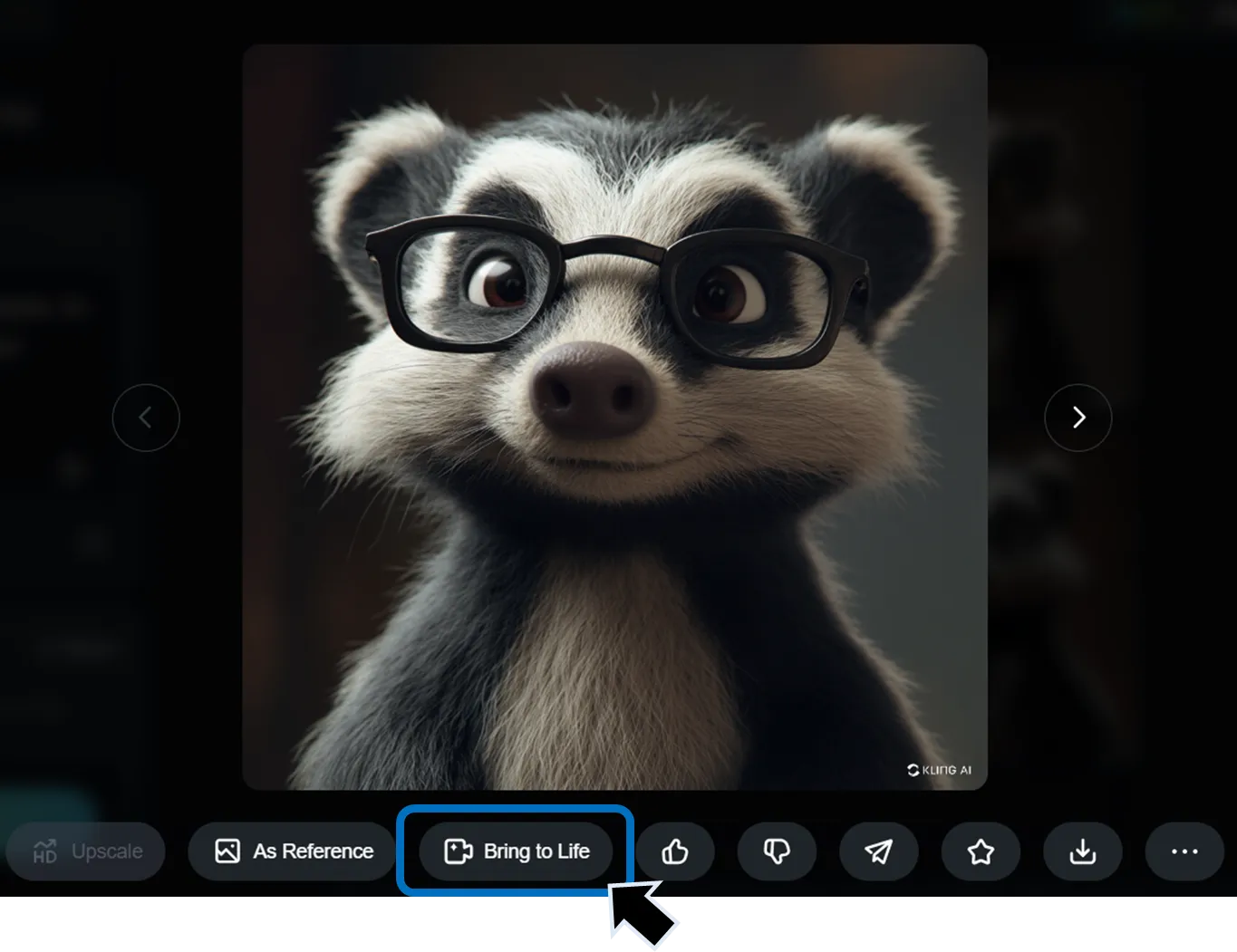
- When using AI Images assets, tap Bring to Life beneath the thumbnail and choose an animation style.
Lip Sync (voice + mouth movement)
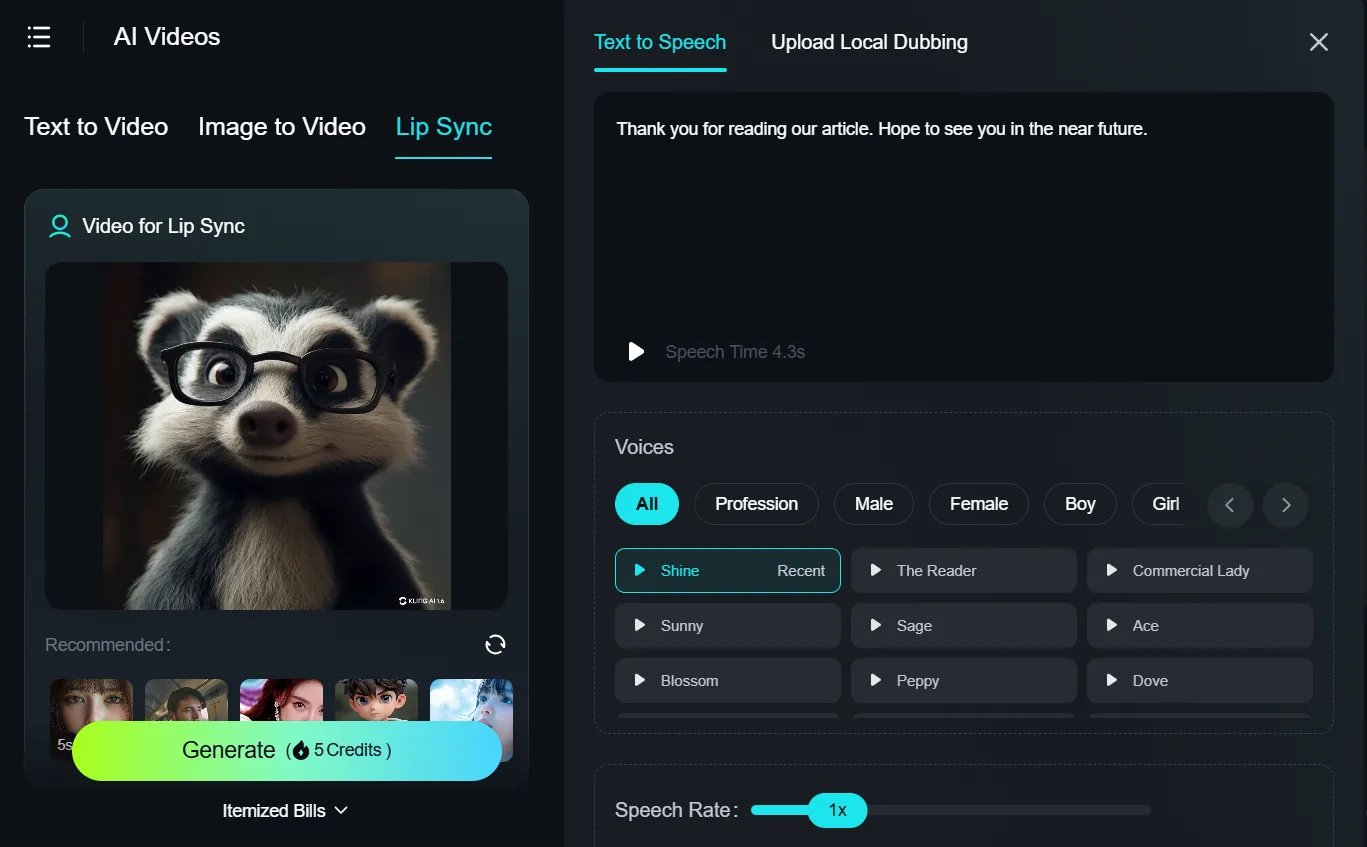
Upload a base video, enter your script under Text to Speech, and Kling auto-syncs a selected synthetic voice to the character’s mouth. You can also upload custom audio tracks when you need brand voices.
Elements (Kling 1.6 only)
Need strict brand consistency? Stick with the 1.6 UI, add up to four reference images (character, background, logo, props), describe the scene, and hit Generate. This is still the best path when you must lock facial identity or layout.
Pricing (July 2025)
| Plan | Price / month | Credits / month | Highlights |
|---|---|---|---|
| Free | $0 | 300–400 | 720p output, watermark |
| Standard | $10 | 660 | Removes watermark |
| Pro | $37 | 3,000 | 1080p, priority queue |
| Premium | $92 | 8,000 | Fastest queue, high-volume commercial rights |
Which plan fits?
- Experimentation & learning → Free
- HD social content & SMB ads → Pro
- High-volume delivery or tight deadlines → Premium
All tiers can be upgraded or downgraded monthly, so start Free and scale once you validate quality.
Bottom Line
Kling 2.1 delivers 1080p, physics-aware animation, and integrated audio while keeping the approachable UX that made version 1.6 a hit. Elements and End-frame controls still require the 1.6 workspace, but most teams will benefit from moving new work to 2.1 for the fidelity boost. Try the Free plan to evaluate tone and handling, then graduate to Pro or Premium when you’re ready for commercial runs.