
The video generation AI field is evolving at a breakneck pace. Among the many players, Kling AI, developed by the Chinese company Kuaishou, has garnered significant attention for its ability to generate high-definition, realistic videos.
With the recent release of Kling 1.5, the quality of generated videos has reached a new dimension. This guide provides a detailed walkthrough of the features and usage of Kling 1.5.
Table of Contents
- Key Features of Kling Video Generation
- About the “Elements” Feature
- Step-by-Step : Image and Video Generation
- Conclusion
Key Features of Kling Video Generation
The Kling series has undergone a major evolution from version 1.6 to 2.1. Below are the defining features and characteristics of each version.
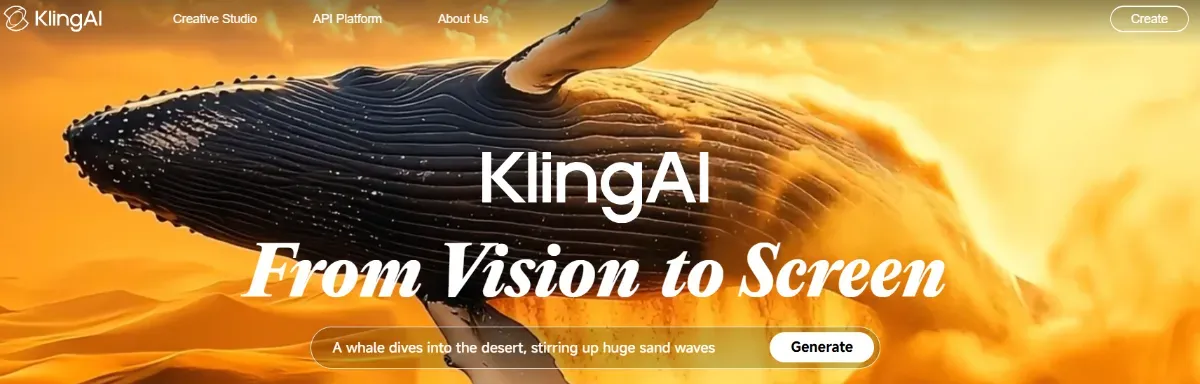 Source:https://klingai.com/global/
Features of Kling 1.6
-
Specify Both Start and End Frames
Allows for precise control over how a video begins and ends. -
Multi-Image Composition (Elements)
Easily maintain consistency for characters or backgrounds across a series of videos. -
Text-to-Video (T2V) Support
Generate videos from text prompts alone, even without a source image. -
Lightweight and Fast 720p Output
Low-load processing makes it ideal for prototyping and testing prompts.
Features of Kling 2.1
-
Cinematic Video from a Single Image
Construct an entire scene using only a “Start Frame.” -
Automatic Realistic Physics
Naturally reproduces the movement of cloth, hair, water, and gravity within a 3D space. -
High-Quality 1080p Output (Pro Plan and above)
Provides visual quality robust enough for advertising, social media, and commercial use. -
One-Step Video Generation with Audio (Master Mode)
Automatically synthesizes sound effects (SFX), background music (BGM), Text-to-Speech (TTS), and LipSync. -
Simultaneous Generation of Up to 4 Patterns
Reduces editing time by allowing you to choose the best result from multiple candidates.
Unlike traditional video production that requires segmented workflows, Kling realizes an “intuitive, instant output” style driven primarily by prompts. With every update, it continues to establish itself as a high-quality and high-efficiency tool.
Real-World Example: Comparison via X (Twitter)
In the post shared by TheAIColony below, you can see the quality of 1080p videos generated with Kling 2.1 Pro, as well as the generation process. Please refer to it to check the actual output results.
About the “Elements” Feature
Released on January 23, 2025, for Kling 1.6, “Elements” is a multi-image synthesis option. By uploading up to four reference images (such as characters, backgrounds, or props) and having the model recognize them as “Elements,” users can achieve the following:
-
Consistent Character and Background Maintenance
Reduces visual inconsistencies in hairstyles, outfits, or logo placements across sequential videos. -
Simultaneous Placement of Multiple Objects
Naturally blends multiple elements—such as a person, a car, a building, and a logo—into a single video. -
Detailed Specifications Difficult for Prompts Alone
Allows you to show complex compositions or specific props visually, reducing the need for repeated trial-and-error with text prompts.
As a result, the workflow of “bringing the image in your head directly into video” has become a reality, significantly increasing creative freedom. While this feature is currently unsupported in the 2.1 series, it may be implemented in the future. If you cannot wait for its return, a viable workaround is to use the older UI of Kling 1.6 Pro or to use highly detailed, consistent keywords within your prompts to maintain stability.
Step-by-Step : Image and Video Generation
The workflow for generating videos from images using Kling is as follows:
-
Upload Images or Videos (Optional)
In Kling 2.1, you can specify a “Start Frame” for image inputs. Note that “End Frame” support is currently exclusive to version 1.6, which allows you to control both the beginning and end of the clip. Additionally, video-to-video input is currently supported in version 1.6 but not yet in 2.1.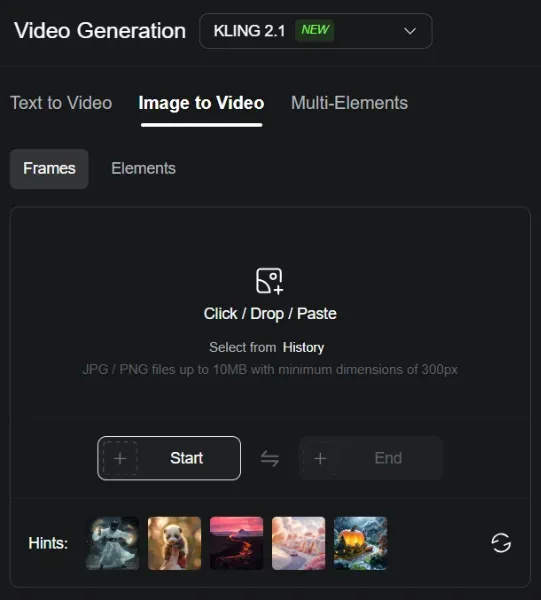
-
Enter Your Prompt
Input a detailed description of the scene you want to create.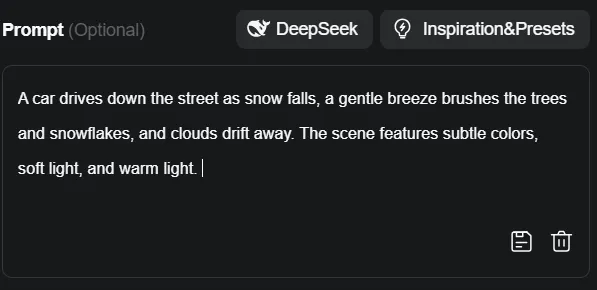
-
Configure Settings
Select the Model (Standard / Professional), Length (5 or 10 seconds), Number of Outputs, and other preferences.
-
Click “Generate”
Start the generation process.
The procedure is remarkably simple, allowing even users unfamiliar with video production to produce high-quality results immediately.
Conclusion
Kling 2.1 is a powerful tool that makes generating high-quality videos from images effortless. From 1080p output and realistic physics to integrated audio, anyone can create professional-grade footage in a short amount of time.
If you’re ready to try it out, we recommend starting with the Free Credits on the Basic model. From there, you can efficiently scale up to the Standard, Pro, or Premier plans based on your creative needs.