
Google DeepMind’s video generation AI “Veo 3” can simultaneously generate 8-second high-quality videos (720p/1080p) and audio from text (and optionally images). In September 2025, API pricing was significantly reduced, vertical format (9:16) and 1080p support were expanded, and Veo 3 Fast became available for stable use, lowering the barriers for both personal and commercial applications.
This article organizes the basics of Veo 3, notable features, latest pricing and plans, Veo 3 Fast positioning, operational flow, prompt design, practical examples, and commercial use considerations based on the latest information.
Table of Contents
- What is Veo 3?
- Key Features
- Pricing and 3 Steps to “Use for Free”
- First-time Veo 3 Operations (Gemini)
- More Effective Prompt Structure (Google Cloud Official Recommendation)
- Veo 3’s Capabilities Through Official X Posts and YouTube
- Summary
What is Veo 3?
Veo 3 simultaneously generates 8-second videos and audio (sound effects, environmental sounds, dialogue) from natural language (and optionally images) within the model. With excellent physical behavior, camera expression, and prompt fidelity, it can produce natural results (including lip sync) where video and dialogue audio are consistent from short descriptions. As it can quickly generate high-quality short clips, it’s suitable for creating advertising variations, visualizing ideas at the planning stage, and creating replacement materials for internal documents.
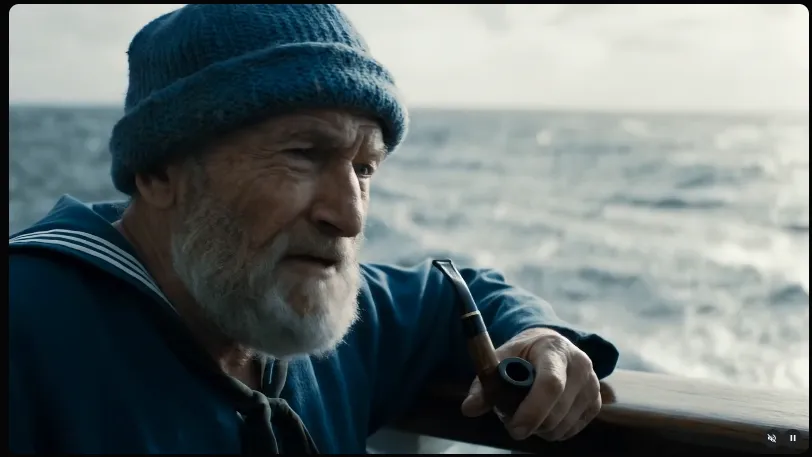
Source: https://deepmind.google/models/veo/
Key Features
To cut to the chase, Veo 3’s true value lies in its comprehensive strength combining “video, audio, and usability.”
-
Simultaneous Audio Generation No need for lip-sync adjustments - short videos are instantly complete. Correctly interprets Japanese input, with Japanese narration support.
-
Cinematic Expression Support Adding cinematic terms like “cinematic” and “shallow depth-of-field” reproduces water reflections and depth of field.
-
Advanced Camera Control Realizes cinematic expression by specifying pan, zoom, and rotation numerically.
-
Object Addition/Deletion One-click correction of unwanted elements in shots.
-
Flow Integration Script → clips → scene editing all in one screen.
-
Generation Speed and Cost Efficiency (Veo 3 Fast) Supports “Veo 3 Fast” which can generate videos in shorter time and at lower cost than the standard model. Suitable for creating variations for social media and prototyping at the idea stage. It’s efficient to first establish direction with Fast, then finalize with Veo 3. Note that Fast has a specification difference of being incompatible with Image-to-Video (text-to-video only).
Understanding these features allows even first-timers to mass-produce “usable videos.”
Pricing and 3 Steps to “Use for Free”
Pricing
Using Veo 3 requires subscribing to either Google AI Pro or Google AI Ultra paid plans. Subscribing to these plans enables use of both the “Veo 3 β” tab in the Gemini app and Flow’s timeline editing for Veo 3.
| Plan | Veo Access | Monthly AI Credits | Pricing & Key Benefits |
|---|---|---|---|
| Google AI Pro | Limited access to Veo 3 Fast. Video generation available from Gemini (“Video” button). | 1,000 | $19.99/month, 2TB storage. Veo 3 Fast max 3 videos/day (preview) |
| Google AI Ultra | Maximum access to Veo 3. Flow advanced features (1080p, camera control, etc.) also available. | 25,000 | $249.99/month (announced 50% off first 3 months), 30TB, YouTube Premium, etc. Veo 3 max 5 videos/day (preview) |
Credit-related Notes
-
Credit Consumption Fast: 20 credits/video Quality: 100 credits/video
-
Credits automatically reset at the beginning of each month.
3 Steps to “Use for Free”
First, let’s try Google AI from the free tier.
[Step 1] Sign up for Google AI Pro with first month free
With 1,000 credits, high-speed and standard video generation is possible.
[Step 2] Use Fast mode to conserve credits
Video generation possible at 20 credits per video (Fast mode).
Try up to 50 videos equivalent for free within the month.
[Step 3] Upgrade to Ultra if needed
If you want high quality and mass generation, Ultra is also an option.
12,500 credits are allocated per month.
September 2025 Update: Veo 3 API Pricing Revision
In September 2025, Google reduced developer API pricing, expanded vertical 9:16 and 1080p configurations, and migrated to stable operation with Gemini API.
Current API (Vertex AI / Gemini API) Pricing
Veo’s per-second billing is as shown in the table below (two axes: video + audio / video only).
| Model | Output | Price (USD) | Main Specifications |
|---|---|---|---|
| Veo 3 | Video + Audio | $0.40/sec | 720p/1080p, 16:9 / 9:16 support |
| Video Only | $0.20/sec | 720p/1080p, 16:9 / 9:16 support | |
| Veo 3 Fast | Video + Audio | $0.15/sec | 720p/1080p, 16:9 / 9:16 support, high-speed |
| Video Only | $0.10/sec | 720p/1080p, 16:9 / 9:16 support, high-speed |
Old prices were Veo 3 ($0.75/sec), Veo 3 Fast ($0.40/sec), with current prices reduced by approximately 50%.
First-time Veo 3 Operations (Gemini)
Write prompt and select “Video”.
Writing in the order of “list elements → video tone → audio image” in one line reduces failures.
Example: “A serene lakeside at dawn, soft pastel colors, gentle ripples; a narrator whispers ‘good morning’ with birds chirping in the background.”
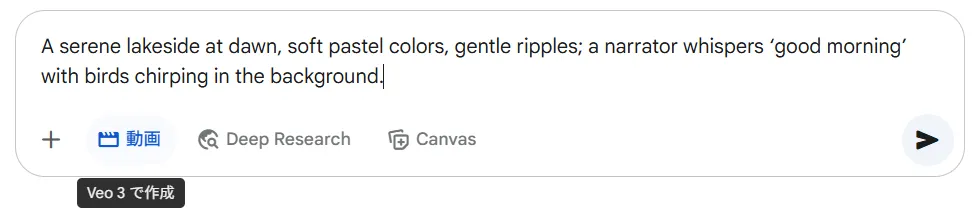 Preview → Download
After generation, save directly in MP4 format. SynthID watermark is automatically applied, eliminating copyright concerns.
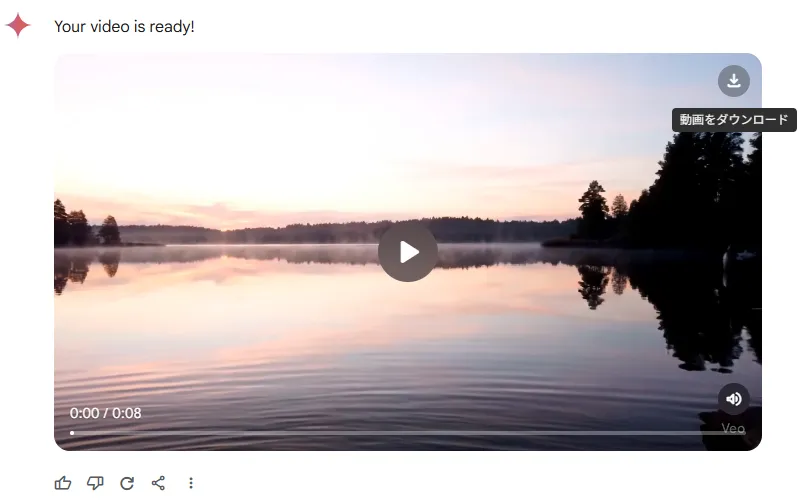
Photo-to-Video Support (Added July 2025)
In the Gemini app and Flow, the ability to generate videos from a single still image was also added (Photo-to-Video / Frames to Video). Simply upload an image and specify movement, audio, and expression in natural language to generate videos with audio up to 8 seconds long.
[Procedure]
Open the “Videos” tab, select Add Photo, and upload an image. The prompt writing method follows the same procedure as above.
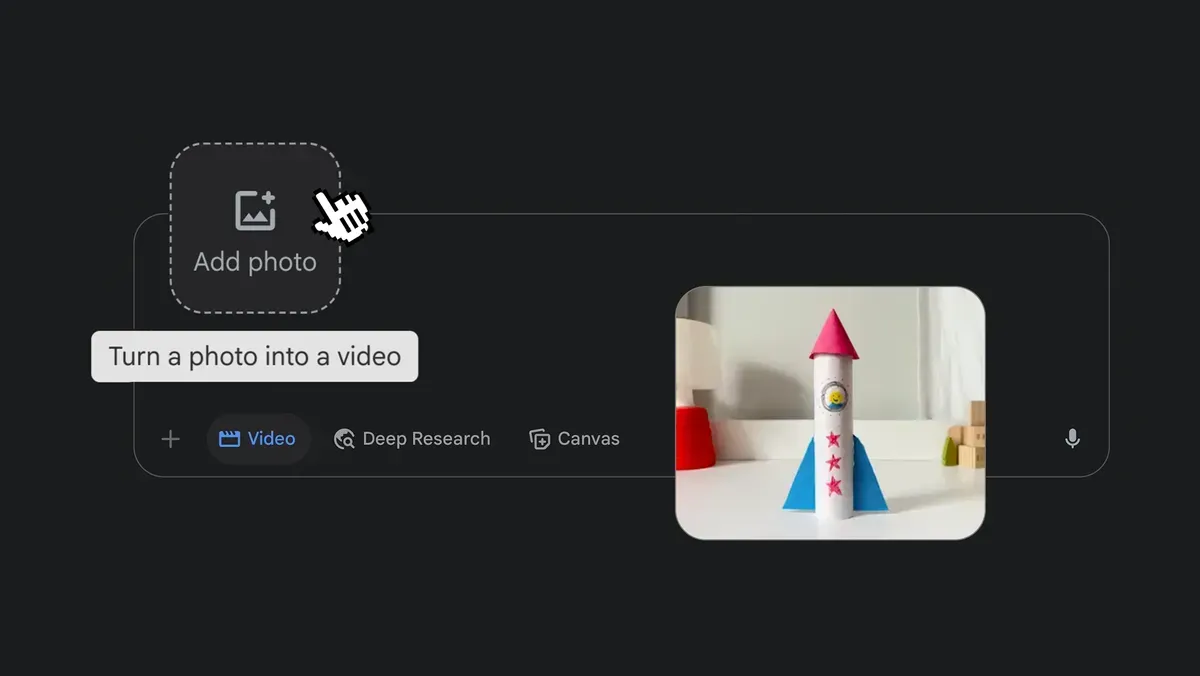
Source: https://blog.google/products/gemini/photo-to-video/
More Effective Prompt Structure (Google Cloud Official Recommendation)
By carefully crafting the prompt structure, the accuracy and expressiveness of generated videos and expressions can be greatly improved.
9 Prompt Elements for High-Quality Video and Expression
Google Cloud’s Medium article (author: Dr. Wafae Bakkali) presents 9 elements for prompt design suitable for Veo 3.
Being aware of the following structure enables more accurate generation of expression, video, and audio.
| Element | Example |
|---|---|
| ① Subject | a seasoned detective, a glowing orb, a miniature dragon |
| ② Action | walks slowly, laughs nervously, stares upward |
| ③ Scene | in a neon-lit alley, at dawn, surrounded by fog |
| ④ Camera Angle | low-angle shot, close-up, bird’s-eye view |
| ⑤ Camera Motion | slow pan, zoom-in, handheld shake |
| ⑥ Lens Effect | shallow depth-of-field, anamorphic, fisheye |
| ⑦ Visual Style | cinematic, anime-style, vintage sepia |
| ⑧ Temporal Expression | slow motion, timelapse, pulsing rhythm |
| ⑨ Audio | wind rustling, soft narration, distant sirens |
Template Example:
A woman in a trench coat walks briskly through a rain-soaked street at night (scene), shot in handheld (motion), cinematic (style), with neon reflections (visual), and footsteps echoing around her (audio).Practical Prompt Design Techniques
Here are 9 practical best practices to keep in mind when generating videos from images or designing precise prompts.
-
Utilize Advanced Cinematic Terminology Example: Including terms like
jump cut,split diopter effect,match cutin prompts improves expression accuracy.Prompt: A person sits in the same position but with different outfits; sharp jump cuts switch outfits instantly while lighting and framing stay consistent. -
Avoid Ambiguous Expressions, Write Clearly Good example: “I want kind of a dark vibe with like… some dude” Bad example: “Low-angle close-up of a man with a somber expression in dim lighting”
-
Don’t Enclose Dialogue in Quotation Marks (Avoid Subtitling) Good example:
A girl says: HelloBad example:A girl says: "Hello"← Dialogue may appear on screen -
Output in Multiple Aspect Ratios 16:9 → For YouTube and presentation materials 9:16 → TikTok, Instagram Reels 1:1 → For social media posts and ads
-
Focus on 1 Prompt = 1 Scene Multiple scene transitions in one sentence often fail.
Split as follows: Clip 1:
A detective discovers a hidden symbol inside an old bookClip 2:A car speeds through neon-lit city streets in the rainClip 3:The detective enters a shadowy warehouse, facing a figure in silhouette -
Utilize Gemini Before generation: Use as prompt assistant (Example:
Create a prompt specifying only movement based on this image) After generation: Use as “second opinion” for brand checking and improvement suggestions -
Use High-Resolution Images (Image-to-Video) Blurry images result in unclear depictions and reduced video quality. Clear materials with good composition are recommended.
-
Write Prompts Focusing Only on Movement (Image-to-Video) Leave subjects, backgrounds, and colors to the image, specifying only “movement” in the prompt.
Good example:
The subject turns slowly to the left as fog creeps inBad example:A woman in a red dress standing in a foggy street at night -
Combine Three Types of Movement (Image-to-Video) Camera movement →
slow zoom in on the subjectCharacter movement →her hair sways gently in the breezeEnvironmental movement →rain starts falling softly
Writing Styles to Avoid (Not Recommended)
-
Fragmented bullet-point prompts (example:
girl / alley / neon / wind) -
Redundantly repeating the same meaning (example:
a woman in a red dress, wearing a red dress, walking in a red dress) -
Duplicating character or scene descriptions in both image and text (especially for image-to-video)
Veo 3’s Capabilities Through Official X Posts and YouTube
Viewing these posts shows how environmental sounds and dialogue are synthesized according to prompts. Please first experience the completeness of “video + audio.”
The following animation was entirely created with Veo3.
Summary
Veo 3 is Google’s first model that can generate from “text → video → audio” in one stop. Furthermore, in July 2025, photo-to-video generation support was added, greatly expanding the range of expression.
By utilizing the Pro plan’s free trial, you can experience around 50 videos for free within the credit range. First, try it casually in the Gemini app, and once you get a feel for it, switch to Flow for end-to-end scene editing - this is the shortest video generation workflow as of 2025.